Getting started
1. Install it
Section titled “1. Install it”- In WordPress, go to Plugins → Add New Plugin.
- Search for Red Jaguar Newsroom Privacy.
- Click Install Now, then Activate.
It needs WordPress 6.5 or later and PHP 7.4 or later.
2. New images are protected
Section titled “2. New images are protected”From now on, every JPEG, PNG and WebP image you upload loses its hidden data. The default settings are the recommended ones; you do not need to change anything. See New images.
3. Review the images that were already there
Section titled “3. Review the images that were already there”Images uploaded before the plugin was active are not cleaned automatically.
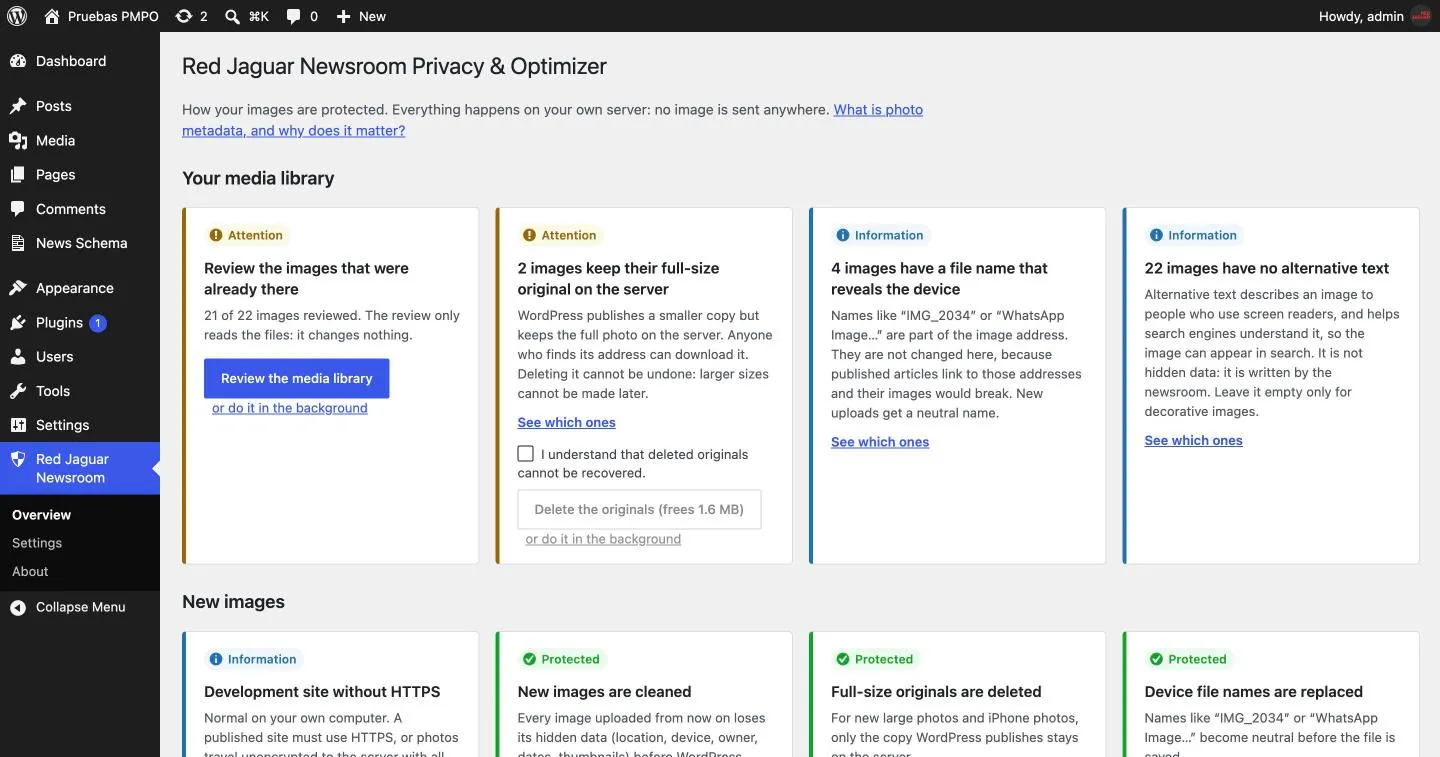
- Open Red Jaguar Newsroom → Overview.
- Click Review the media library. The review only reads the files: it changes nothing.
- Look at what it found and clean it. See Your media library.
4. Check the overview
Section titled “4. Check the overview”Red Jaguar Newsroom → Overview shows how your images are protected, item by item, marked as Protected, Attention, At risk or Information. It also warns you if your site does not use HTTPS: without it, photos travel unencrypted from the reporter’s computer to your server, with all their hidden data, before the plugin can clean them.