
Install and activate
You need an administrator account on the WordPress site.
1. Download the plugin
Section titled “1. Download the plugin”- Log in to your account at redjaguar.agency/plugins/account.
- In the license you want to use, click Download the latest version. You get a
.zipfile. Do not unzip it.
2. Install it
Section titled “2. Install it”- In WordPress, go to Plugins → Add New Plugin → Upload Plugin.
- Choose the zip and click Install Now.
- Click Activate.
If you are replacing an older copy of the same plugin, WordPress asks what to do: choose Replace current with uploaded. Your settings are kept.
3. Activate the license
Section titled “3. Activate the license”-
Open the License screen of the plugin:
Plugin Where News Sitemap & Schema News Schema → License DataMaps Red Jaguar DataMaps → DataMaps license Until you activate it, the plugin menu shows only this screen.
-
Paste the License key from the email.
-
Click Activate on this site.
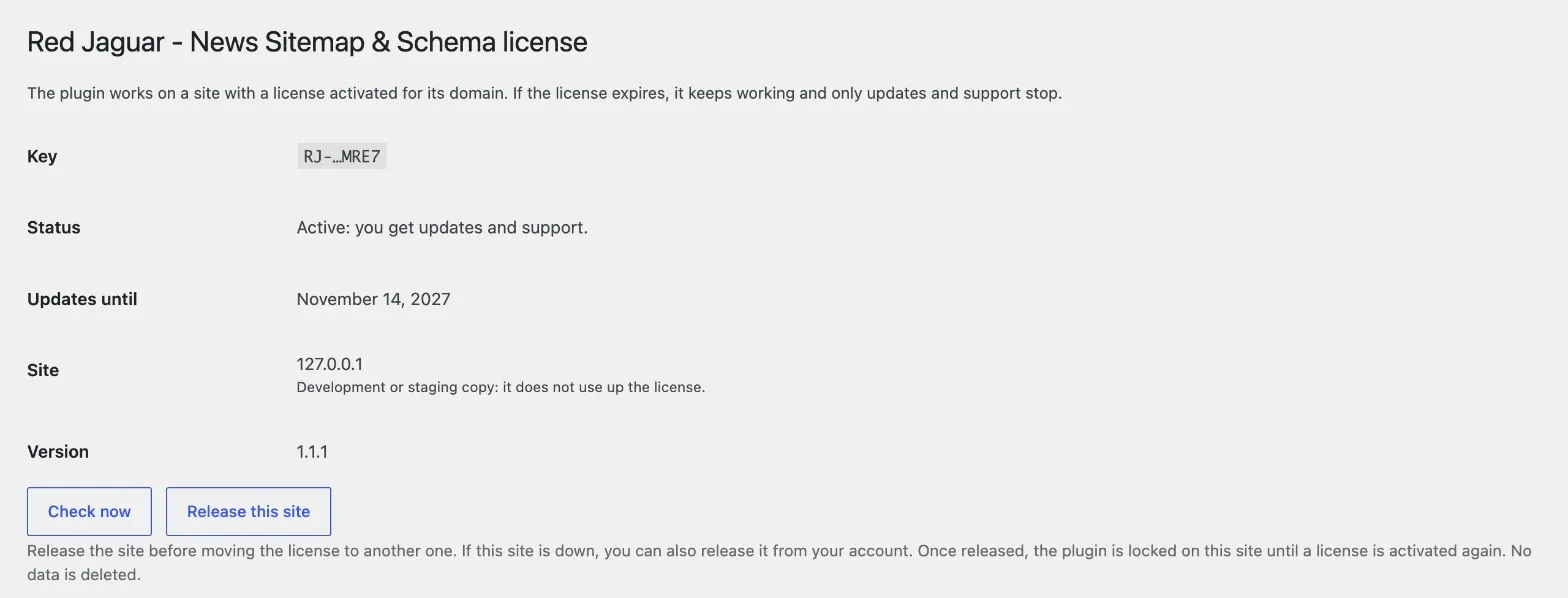
The screen now shows the state of the license, the date until which you get updates, and the version installed. The plugin is ready.
If something goes wrong
Section titled “If something goes wrong”- “This license is in use on another site.” Each license works on one domain. Release it from the other site, or from your account, and try again. See Move a license to another site.
- “The store could not be reached.” Your server could not connect to redjaguar.agency. Try again in a few minutes. If it keeps happening, ask your hosting provider whether the server can make outgoing connections.
- Lost the key? Your account can make a new one. See Your account.